Historizing System Configuration Records
Several system configuration records in FMS Explorer are historized so that you can view any changes made to a record over time. Each historized system configuration record has a "change begin" and "change end" time window, so you can scroll back and forth between changes for any given record.
The following types of system records are historized.
- Node creation and changes
- Validation rule creation and changes
- Estimation rule creation and changes
- Purged device data actions
Historized records may be useful in the following situations.
- You have recently acquired a new field and need to rename all devices. By performing an audit request from before the acquisition you can view the old device names.
- You must change validation rules to match a hardware change, but data is still coming in from the device from before the change and you must validate data under the old rules.
- You know that a field device is going to be offline for three hours tomorrow. You can proactively “deactivate” the device for those three hours in the system so it doesn’t try to get data during the offline period. The measurement system will mark the database accordingly.
Saving a Historized Record
After creating or editing a Node, validation rule, or estimation rule, you will be asked to historize the record change as part of the save action. Select effective change begin and change end dates. Options are Indefinite (no specific time; effectively all time), and Choose date/time (C) (the specific date/time you select).
Note: Change end date will be Indefinite for Node creation. Either option is available for Node edits.
You can optionally select an audit category from the drop-down menu to provide a more detailed audit trail for the record. Each audit category type contains configured options of available audit categories. Categories are configured on the Admin menu. See Configuring Audit Categories for more information.
You can also optionally enter a comment in the text box to explain the change. This comment becomes part of the audit record, and can help to identify the context for the change.
Specify the following parameters to describe the saved record.
|
Save FMS Record |
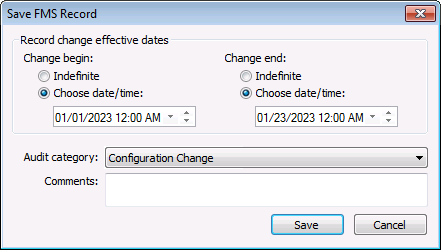
| Property | Description |
|---|---|
|
Change begin |
Set the effective date and time for the record change to begin. Options are as follows.
|
|
Change end |
Set the effective date and time for the record change to end. Options are as follows.
|
|
Audit category |
Select an appropriate Audit category from the drop-down menu. The audit category type for this kind of edit is Configuration Change. Audit categories are configured on the Admin menu. See Configuring Audit Categories for more information. |
|
Comments |
Type Comments regarding creation or modification of the rule or Node in the text box. Although comments are optional, they become part of the record and can be helpful when auditing or reviewing records. |
See the following topics for information about saving this type of FMS record.
- Creating Gas Meter Nodes and/or Viewing and Editing Gas Meter Node Properties
- Creating Chromatograph Nodes and/or Viewing and Editing Chromatograph Node Properties
- Creating Liquid Device Nodes and/or Viewing and Editing Liquid Device Node Properties
- Creating General Group Nodes and/or Viewing and Editing General Group Node Properties
- Creating Station Group Nodes and/or Viewing and Editing Station Group Node Properties
- Configuring Validation Rules
- Configuring Estimation Rules

Using the Historization Navigator
Many dialog boxes in the measurement system contain a Historization Navigator to easily access sequential historized records, where applicable. Historization views records as of "now" (system Contract time).
|
Historization Navigator |

The following fields are displayed in the historization navigator.
| Field | Description |
|---|---|
|
<< |
Click << to navigate to the previous historized record, if applicable. |
|
[Begin date] |
Displays the effective begin date, in Contract time (C), of the historized record currently selected. |
|
[End date] |
Displays the effective end date, in Comntract time (C), of the historized record currently selected. |
|
>> |
Click >> to navigate to the next historized record, if applicable. |
|
Record details |
Use the << and >> navigation buttons to select a historized record date span, in Contract time (C), for which you want to view record details. Next, click Record details to view details of the record such as who made the change, the date and time it was made, and optionally the audit category and/or any comments entered regarding the change. See Viewing Record Details for more information. |
|
Audit history |
Click Audit history to view detailed history of audit trail value changes for the Node in its entirety. See Viewing Audit History for more information. |
Configuring Historization
See Configuring System Options for more information about administrative tasks related to historization, including default configuration change effective dates, and allowing changes to be effective in the past.
More:


